HPE ProLiant fans at full speed after adding non-HPE parts?
Short answer
iLO cannot read a temperature from many non-HPE cards and drives, so it runs the fans on a conservative curve to protect them. Open Power & Thermal > Temperatures in iLO to find the sensor driving the fans, set Thermal Configuration to Optimal Cooling, and update iLO and the System ROM. If the part never reports a temperature, the reliable fix is an HPE-qualified part or a card that exposes its sensor to iLO.
Written against: the HPE iLO 5 3.04 User Guide, the HPE iLO 6 User Guide (February 2025), the UEFI System Utilities User Guide for HPE ProLiant Gen10 and Gen10 Plus, and HPE advisory a00118512.
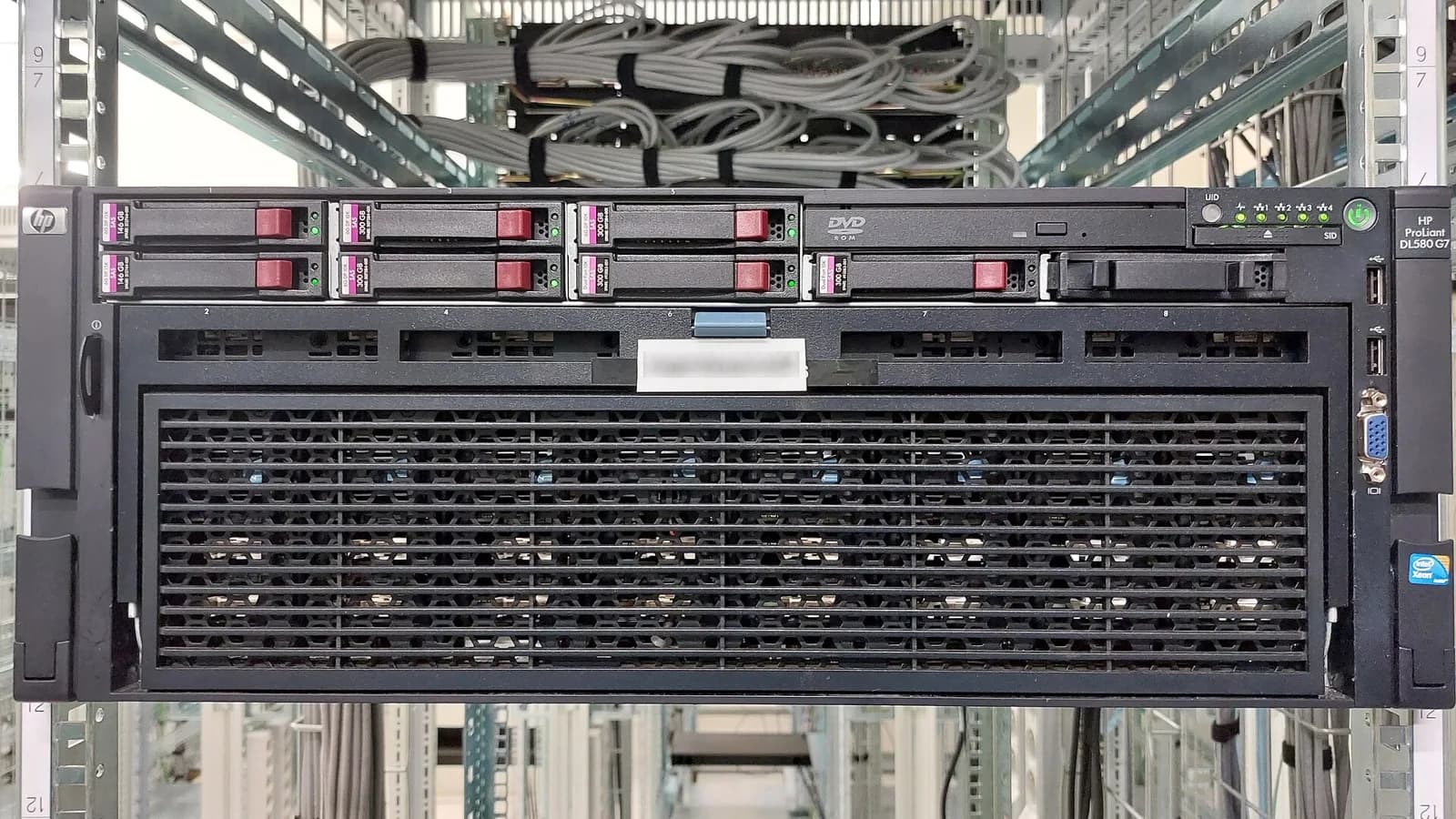
Why do ProLiant fans ramp up with non-HPE PCIe cards or drives?
iLO controls the fans from a set of temperature sensors and thermal data for every HPE option it knows. HPE-qualified NICs, controllers and drives carry firmware that reports temperatures to iLO. Many retail cards and drives do not, or they report in a way iLO does not read. With no data, iLO assumes the part may be hot and raises airflow for that zone. On a DL360 or DL380 this often shows as fans that never drop below 40 to 60 percent, even at idle.
HPE says the same in its troubleshooting material: third-party options are not designed to interact with iLO the way HPE options are, so thermal information may be missing and iLO compensates with higher fan speeds. This is a design choice, not a defect, and no iLO setting tells it to ignore an unknown device.
How do you find which sensor is driving the fans in iLO?
- In iLO 5 (Gen10, Gen10 Plus) or iLO 6 (Gen11), click Power & Thermal, then the Fans tab. Note the speed of each fan, the Thermal Configuration value and the Minimum Fan Speed.
- Open the Temperatures tab. Sort the Sensor Data table by Reading and compare each reading with its Caution threshold.
- Click show missing sensors. A sensor for your new card or drive bay that shows N/A tells you iLO has no reading for that device.
- Use the temperature graph with Front View and Back View to see where the hot or unread sensor sits: drive bays, a PCIe riser or the CPU area.
- Check the Integrated Management Log for thermal or option card events logged around the time you installed the part.
iLO 5 and iLO 6 show adapter temperatures reported over PLDM as subcomponents of the main sensor, marked with an asterisk. If your card appears there with a real reading, iLO can manage it; if nothing appears, it cannot.
Which symptom points to which sensor?
| Symptom | Likely sensor | What to try |
|---|---|---|
| Fans jump right after you add a retail NIC or HBA in a riser | The PCIe slot or riser zone sensor; the card itself shows no reading | Move the card to another riser, update iLO and System ROM, or use an HPE-qualified card or one that reports temperature to iLO |
| Fans high after adding non-HPE NVMe SSDs | Drive bay or NVMe sensors showing N/A | Update drive and backplane firmware, try HPE-branded NVMe, check the Temperatures page after each change |
| Fans high with drives on a non-HPE HBA or in AHCI mode | A drive maximum sensor such as HD Max with no valid data | Install Agentless Management Service (AMS) in the OS so iLO receives drive data, or move drives to an HPE Smart Array controller |
| One reading reaches its Caution threshold | That sensor, often CPU, memory or a PCIe zone | Fix airflow first: drive blanks, air baffle, fan population for your CPU and riser layout |
| DL380 Gen10 fans high for no clear reason on old firmware | Firmware behaviour, not a part | HPE advisory a00118512 covers iLO 5 2.40 and earlier; update to iLO 5 2.42 or later and System ROM 2.50 or later |
Sensor names differ between models and generations, so match them by location on the Temperatures page rather than by name alone.
Which Thermal Configuration should you set in iLO or RBSU?
The thermal settings can raise cooling but cannot lower it below what iLO decides a part needs. Make sure nothing is set higher than necessary. In iLO, go to Power & Thermal > Fans, click the settings icon to open Fan Settings, choose a value and click OK. iLO resets to apply the change.
| Setting | Effect per HPE documentation |
|---|---|
| Optimal Cooling | Fan speeds at the minimum required for adequate cooling. Use this for the quietest result |
| Enhanced CPU Cooling | Extra cooling for the processors, which can improve performance |
| Increased Cooling | Fans run at a higher speed |
| Maximum Cooling | The maximum cooling the system offers |
| Smooth Cooling (iLO 6, recent firmware) | Reduces fan speed response for better acoustics |
In the BIOS the same choice sits under System Utilities > System Configuration > BIOS/Platform Configuration (RBSU) > Advanced Options > Fan and Thermal Options > Thermal Configuration. Also check Minimum Fan Speed on the iLO Fan Settings page. HPE notes that whichever of the two values is higher wins, so a minimum set to 50 percent by a previous user keeps fans at 50 percent no matter what else you change.
Do iLO and System ROM updates help?
Often, yes. HPE adds thermal data for newly qualified options and fixes fan control bugs in iLO and System ROM releases. Advisory a00118512, for example, describes DL380 Gen10 fans that stay at high speed on iLO 5 2.40 or earlier. Apply the current Service Pack for ProLiant, or at least the latest iLO firmware, System ROM and option card firmware, then reboot and recheck the Fans tab.
- Gen10 and Gen10 Plus run iLO 5; Gen11 runs iLO 6. Download firmware for the exact generation.
- Update the card firmware too. Some vendors added PLDM temperature reporting in later releases.
- On Linux and Windows, AMS lets iLO collect extra data from the OS, including some drive temperatures.
Should you use modified iLO firmware to control the fans?
Avoid it. Patched iLO 4 builds that allow manual fan commands circulate for Gen8 and Gen9 homelab servers. They are unsupported, void HPE support, and a fixed low fan speed can let a component overheat with no warning. On Gen10 and later, HPE Silicon Root of Trust verifies the iLO firmware signature, so modified images are not a practical route.
If noise is the problem, the supported options are a quieter thermal setting, parts that report temperatures, or a server whose cooling matches your room, such as a tower model for an office.
How do you check that the new part stays cool?
Whatever you change, run the server under typical load for an hour and read the card or drive temperature with its own tool, for example nvme smart-log for an NVMe drive or the vendor utility for a NIC. A part that iLO cannot see also cannot trigger a fan increase when it heats up, so check its temperature yourself.
Questions people ask
Can I turn off the iLO fan response for third-party cards like on Dell?
HPE documents no equivalent switch. iLO 5 and iLO 6 offer Thermal Configuration and Minimum Fan Speed, which only set how much cooling you add on top of what iLO decides.
Does a non-HPE drive or card void the server warranty?
Using third-party parts does not by itself void the warranty on the rest of the server, but HPE support may ask you to remove them while they troubleshoot. Keep the original parts if you can.
Why are fans loud even with only HPE parts installed?
Check Minimum Fan Speed and Thermal Configuration, missing drive blanks, a missing air baffle, a failed fan and inlet temperature. Then update iLO and the System ROM, since several HPE advisories cover high fan speeds fixed in firmware.
Do I need to reboot after changing Thermal Configuration?
Changing it in iLO triggers an iLO reset, which does not restart the host OS. A change made in RBSU applies when you save and exit, which reboots the server.
Sources
- HPE iLO 5 User Guide: Configuring and viewing cooling features
- HPE iLO 6 User Guide: Configuring and viewing cooling features
- HPE UEFI System Utilities User Guide: Setting the thermal configuration
- HPE advisory a00118512: DL380 Gen10 fans may run at high speed with iLO 5 2.40 or earlier
- HPE ProLiant Gen10 Troubleshooting Guide: Excessive fan noise (high speeds)